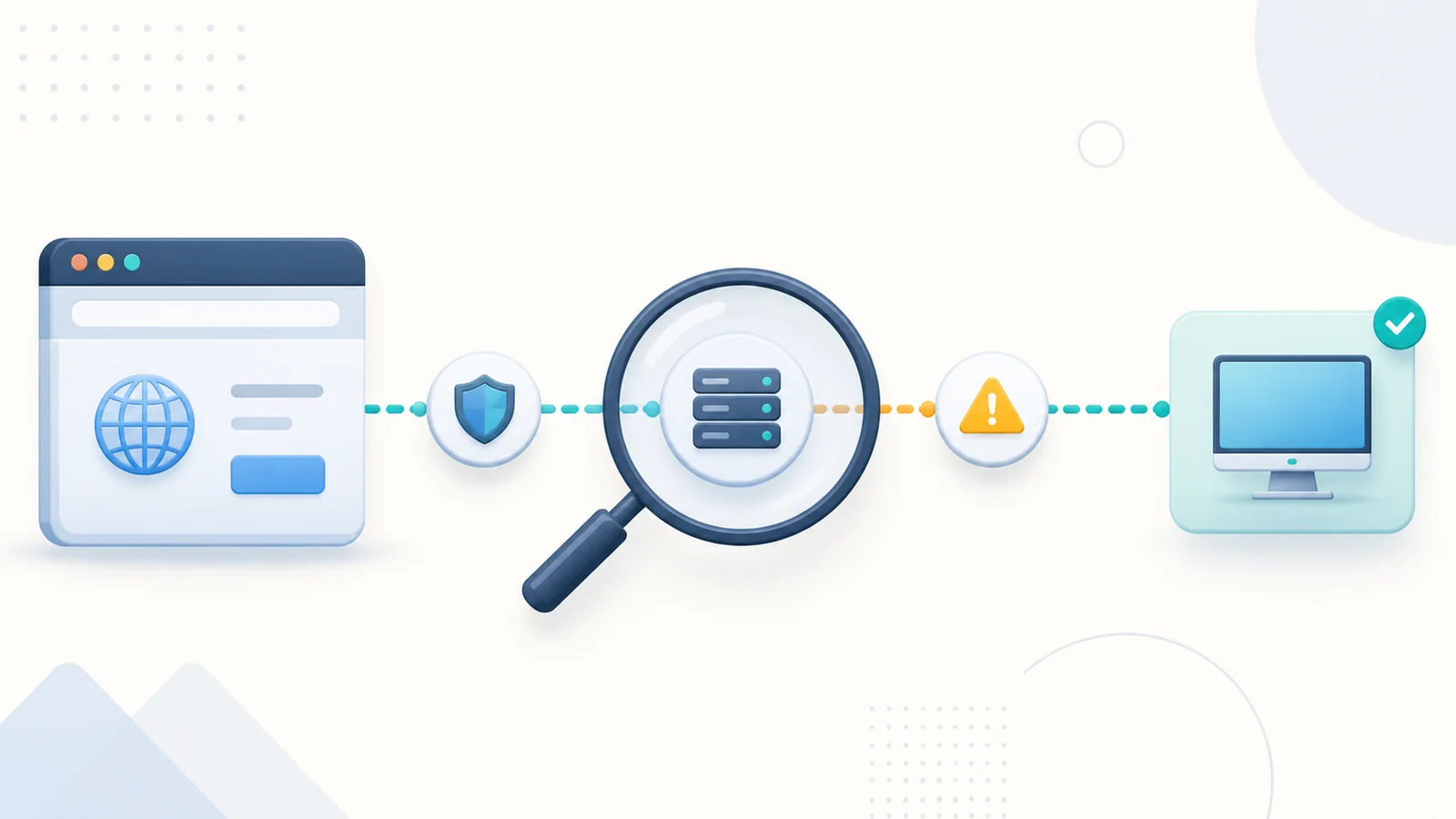
The fastest troubleshooting question is not “Which setting should I change?” but “What is the last stage that completed?” Page delivery, authentication, resource enumeration, launch, gateway negotiation, brokering, session creation, and interactive display each leave different evidence.
Record a clean reproduction
Write down the portal hostname, time including time zone, user identity format without the password, browser version, local operating system, resource tile, network location, and exact visible message. Determine whether one user, one resource, one browser, one site, or every user is affected.
Use the remote dekstop web model to name the last completed step. Reproduce once with a harmless assigned resource if policy permits. Avoid repeated password guesses, global firewall changes, or certificate bypasses that add new variables.
When the portal page does not load
A DNS error, connection timeout, TLS warning, HTTP error, or unstyled page points toward different owners. Confirm name resolution from the affected client, the expected destination, the certificate name and validity, and whether required page assets load through the current proxy path.
Compare with a known network and a known supported browser, but change only one factor per test. If the page works internally and fails externally, inspect the public DNS, edge listener, proxy, and firewall path. If only static assets fail, review content publication and intermediary filtering.
When authentication fails
Separate invalid credentials from an unavailable identity provider, expired password, locked account, denied sign-in rule, or incorrect username format. Check official identity logs and gateway events at the recorded time. A browser error may summarize several server-side reasons into one generic message.
Do not ask the user to disclose the password. Confirm identity with an approved account-recovery or verification process. Test a limited known-good account only when authorized. If multifactor is involved, determine whether the prompt was never sent, rejected, timed out, or completed before the later RDS stage failed.
When sign-in succeeds but resources are missing
An empty workspace usually shifts the investigation toward assignment, publication, and collection configuration. Verify that the same identity expected by Web Access belongs to the intended resource group and that the desktop or RemoteApp is published to that group.
Check whether the problem affects all resources in one collection or only one tile. Recent group changes may need replication or a new session. Browser cache is not the first suspect when the server never included the resource in the feed.
When a resource will not launch
Record whether clicking the tile has no effect, opens a launch dialog, produces a certificate message, or fails after a progress indicator. Inspect browser console support information where approved, plus Web Access, gateway, broker, and identity logs using the same timestamp.
Validate gateway policy, broker availability, collection state, and session-host reachability. Confirm the certificates used by the relevant roles, not just the public web page. A successful HTTPS page load proves neither the RDP gateway tunnel nor broker-to-host communication.
When the desktop is blank, frozen, or disconnected
If a Windows session was created, examine session-host health, profile loading, application startup, graphics behavior, and capacity. Determine whether keyboard input reaches the session and whether display updates stop entirely or arrive slowly. Compare a small published application with a full desktop.
A reconnect can reveal whether the session continues remotely after the browser display fails. Do not repeatedly terminate user sessions without checking for unsaved work. Coordinate a controlled sign-out, profile test, or host drain with the administrator responsible for the collection.
Change one layer and confirm the result
Make the smallest change supported by evidence, record its previous value, apply it through the managed configuration method, and repeat the same test. If the symptom changes, do not assume the incident is resolved; confirm sign-in, resource discovery, launch, interaction, reconnect, and sign-out.
After restoration, write the cause in terms of the failed stage, the evidence that proved it, the approved change, and the monitoring or documentation improvement that prevents repetition. Remove temporary accounts, permissive rules, debug logging, and test exceptions.
Diagnostic sequence
- Exact error and timestamp captured before changes.
- Affected user, resource, browser, network, and site scope compared.
- Last successful stage identified.
- Browser evidence correlated with the correct server role logs.
- Credentials and private deployment details kept out of tickets and screenshots.
- Only one reversible change tested at a time.
- Temporary diagnostic exceptions removed after verification.
Remember
Preserve the original error and timestamp before clearing data or restarting services. One precise failure stage is more valuable than many undocumented changes.